Roles and sharing
An app is private until you share it. Each person you share it with gets a role, which says what they may see and do in the app.

Roles
A role is a name for what someone may do in an app, such as admin or member. The app says which roles may use each of its actions, queries and screens. In the meeting rooms:
member |
admin |
|
|---|---|---|
| See the rooms, the bookings and the closing days | ||
| Book a room, and move or cancel your own bookings | ||
| Move or cancel anyone's booking | ||
| Add or change a room, and set closing days |
Someone with the member role gets only what member may use. Their assistant doesn't even see the rest. Cliquet checks the role before the app runs.
Roles decide who may ask for a change. The app's rules decide which changes are kept, whoever asks, the owner included.
An app can also have no roles. Then everyone who can open it may use all of it, and the console calls them members.
The owner
The person who built the app is its owner. The owner holds every role, and is the only one who can:
- share the app, and remove people from it;
- see every change in the history, with what it did to the data, and undo any of them;
- read the full text of an error;
- publish a new version, or restore an earlier one;
- download the app.
A role that you give to someone else, even one named admin or owner, gives them what that role may use, but doesn't make them the owner.
Share an app
-
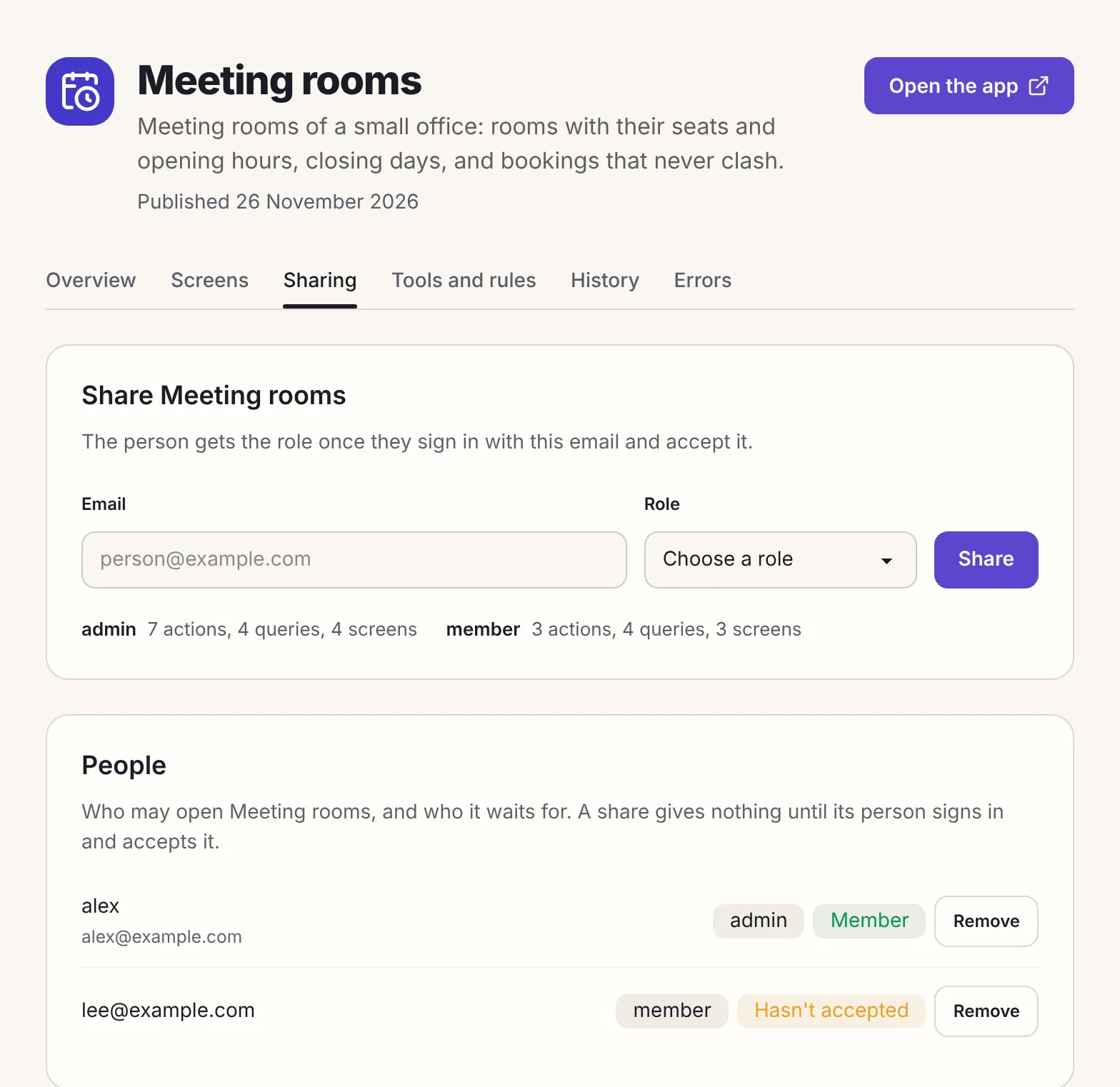
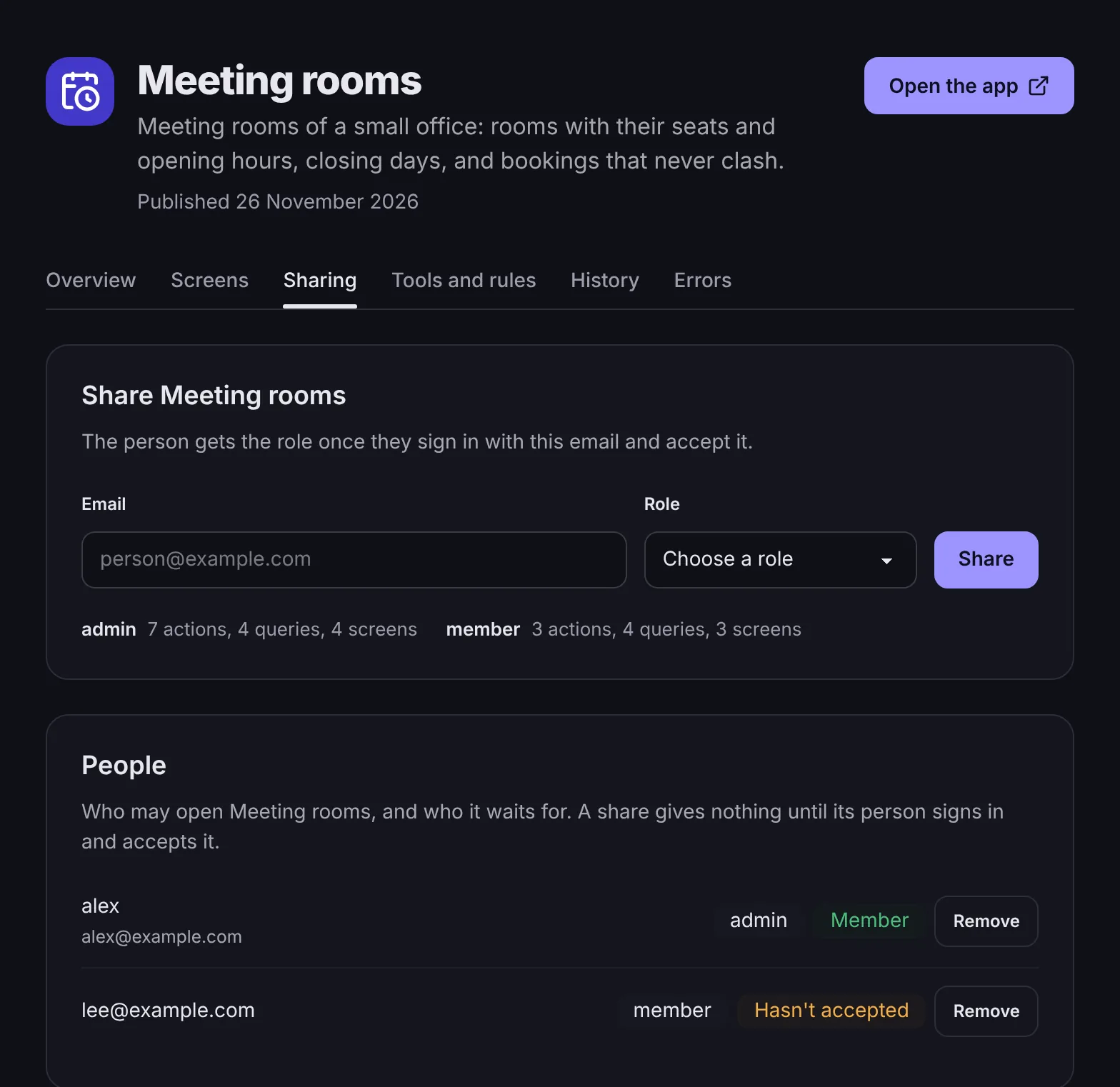
Open the app's Sharing tab.
In the console, click the app under Your apps, then Sharing.
-
Enter the person's email and choose a role.
Next to each role, the form says what it may use, such as "3 actions, 4 queries, 3 screens".
-
Click Share.
To give someone a second role, share again with the same email and the other role.
Ask your assistant, at your MCP server URL:
Share the meeting rooms with sam@example.com as a member.
Your assistant shares an app only when you ask it to. It can share only an app you published.
You share an app only once your email is verified, as Verify your email says.
Tell them yourself
Cliquet sends no email. Send the person the app's link, such as https://app.cliquet.dev/apps/<your login>/<app>, and tell them which email you used.
Accept a share
The person signs in at app.cliquet.dev, or connects their assistant, with the email you used, and chooses a login the first time. Once their email is verified, the share waits for them to accept it. Until then it waits for the email, as Verify your email says.
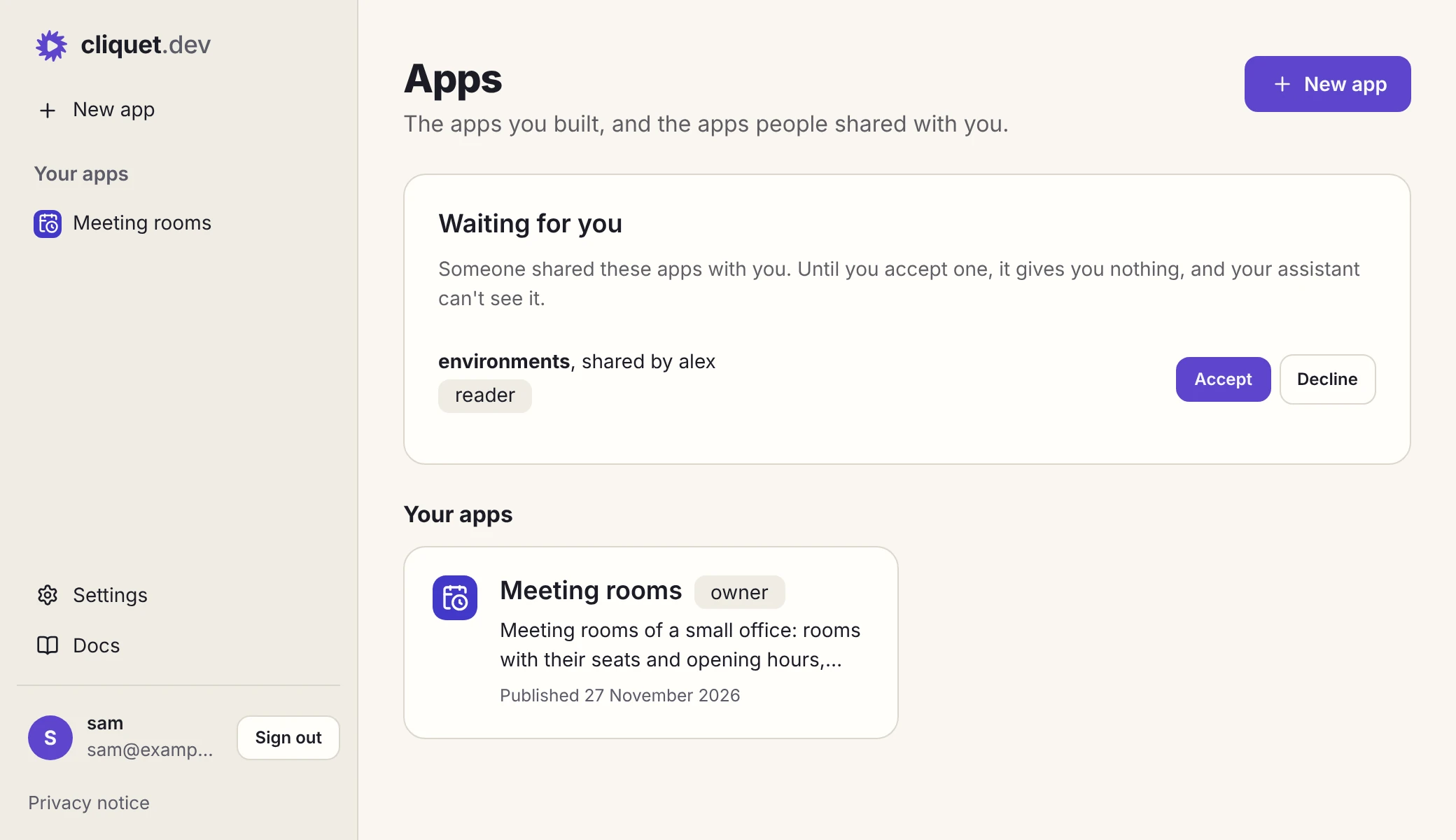
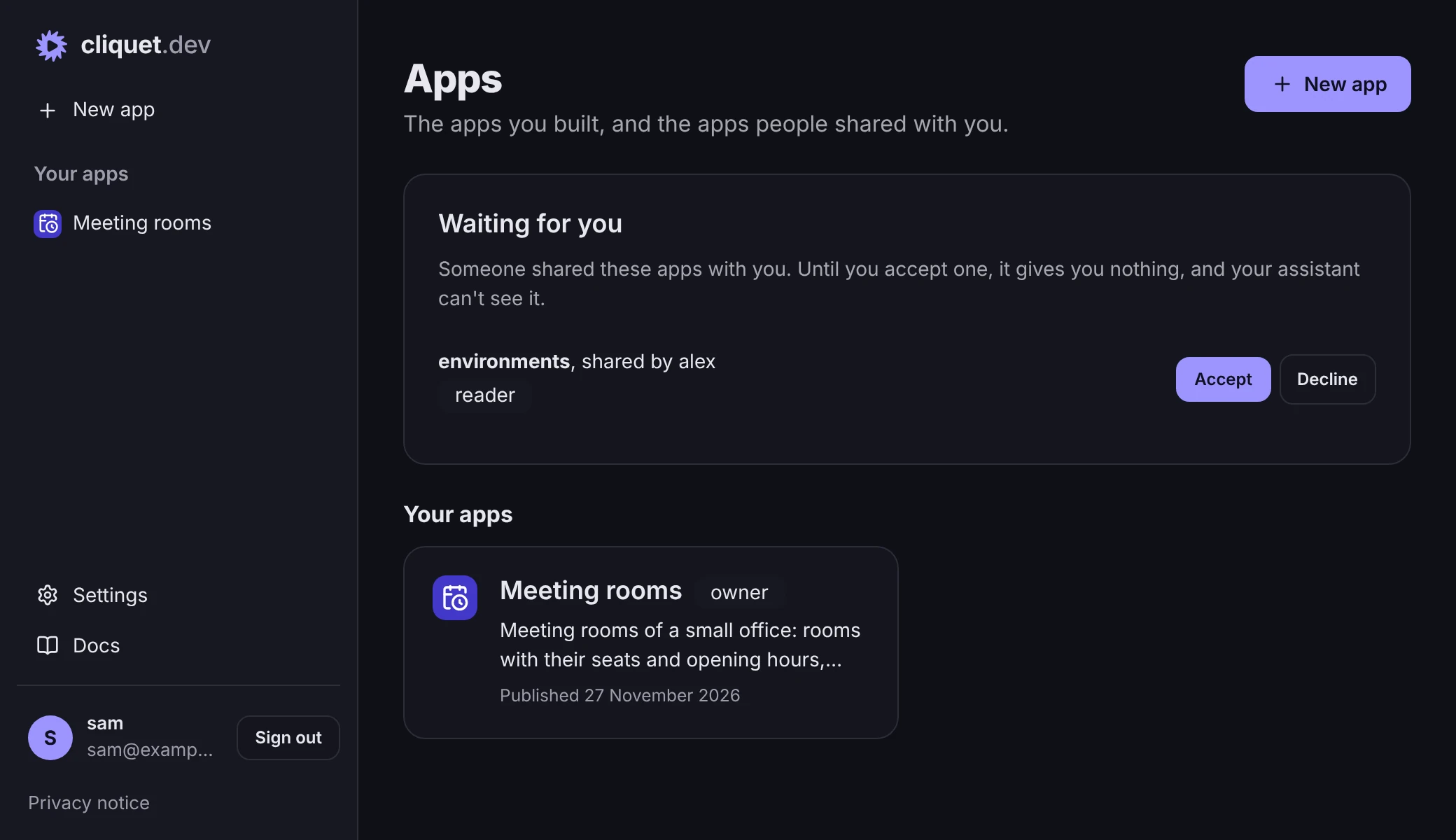
The Apps page lists the share under Waiting for you. Click Accept, or Decline. The app's link, if you received one, offers the same choice.
Ask your assistant:
Which Cliquet apps are waiting for me? Accept the meeting rooms.
Or ask it to decline one. Your assistant accepts or declines a share only when you ask it to.
Until a share is accepted, the person sees only the app's name, its owner's login and the role, and their assistant can't open the app. Nobody can slip an app into your conversations: accept a share only from someone you know, when you expect it.
A member's view
Once they accept, the app appears under Shared with you in their console. They can:
- open its screens for their role. With several roles, the As menu switches between them;
- add those screens to their phone's home screen, as the owner does: see Add it to your home screen;
- use it from their own assistant, at their own MCP server URL. They ask for the app by name.
Members see your login, never your email. Their assistant acts as them, with their roles.
Access
The Sharing tab lists everyone under People, with where each share stands:
| Status | Meaning |
|---|---|
| Member | They accepted the share. |
| Hasn't accepted | The share waits for them to sign in with that email and accept it. |
Each row is one role of one person. To take a role away, click Remove on its row, and confirm. Or ask your assistant, such as "Take the meeting rooms back from sam", which takes every role of theirs unless you name one. They lose it at once. Their past changes stay in the history.
To change a member's role, share the new role with their email. Once they accept it, click Remove on the old role's row, or ask your assistant to revoke the old role only, such as "Revoke sam's admin role in the meeting rooms". Until they accept, they keep the old role.
Access for routines
Sharing is for people. To let a task that runs on its own use the app, such as a weekly booking for the team's planning, make an API token limited to the app and one of your roles in it.