Create and publish your app
Your assistant builds an app from your description and your data, and publishes it when you agree. This page follows a small office from its spreadsheet of meeting rooms to a published app.
Before you start
- Connect your assistant to Cliquet: see Connect your agents.
- Export your spreadsheet as a CSV file. Most spreadsheet programs do this under File, then Download or Export.
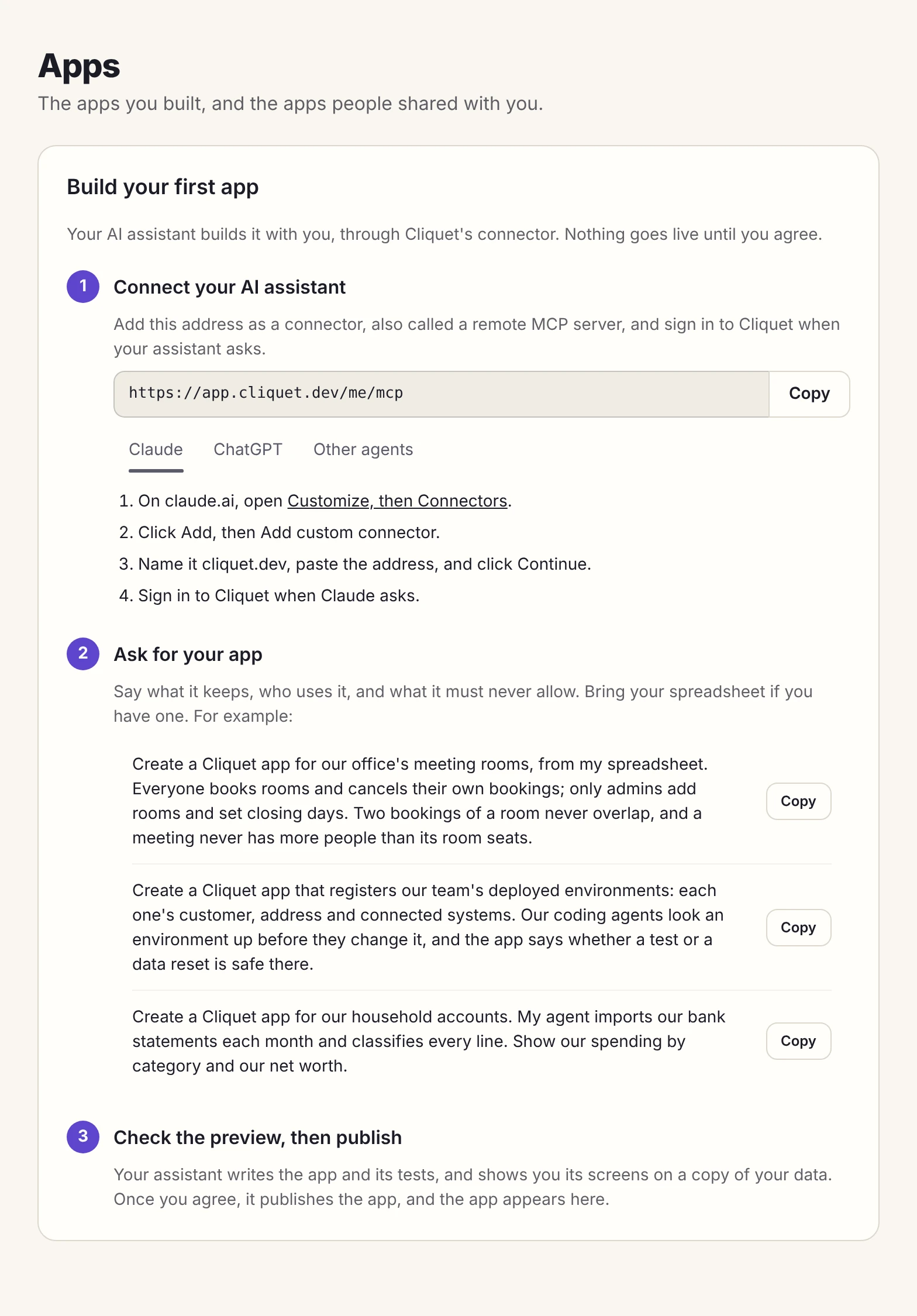
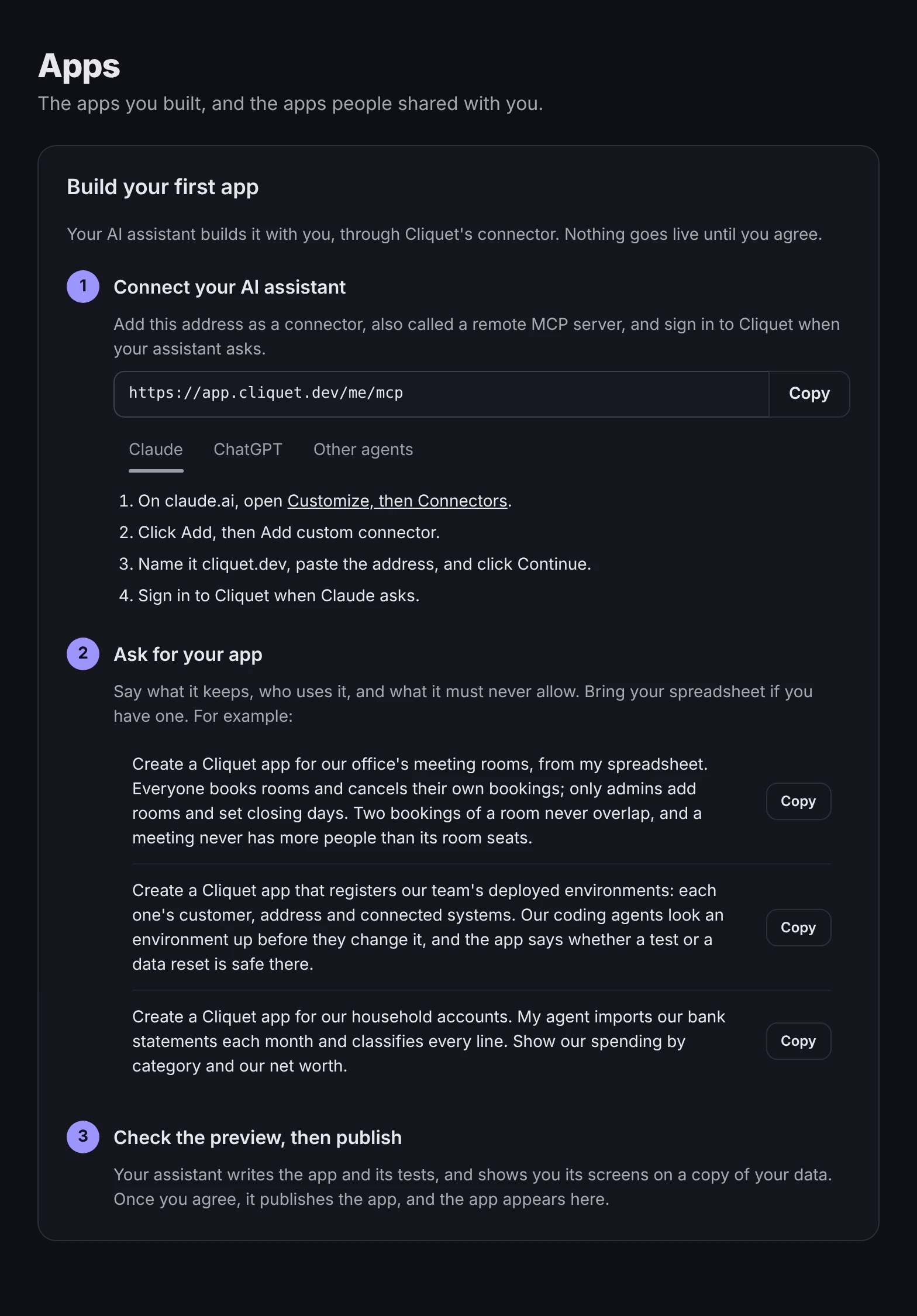
Until your first app is published, the console's Apps page shows how to build one: your MCP server URL, how to add it to your assistant, and a few ideas to start from. Later, click New app to see it again.
The office's spreadsheet, rooms.csv, looks like this:
room,seats,opens,closes,days
Oak,8,08:00,19:00,Mon-Fri
Pine,4,08:00,19:00,Mon-Fri
The Lounge,14,09:00,18:00,Mon-Thu
Describe your app
Start a conversation, turn Cliquet on, and describe the app: what it keeps, who uses it, and the rules it must follow.
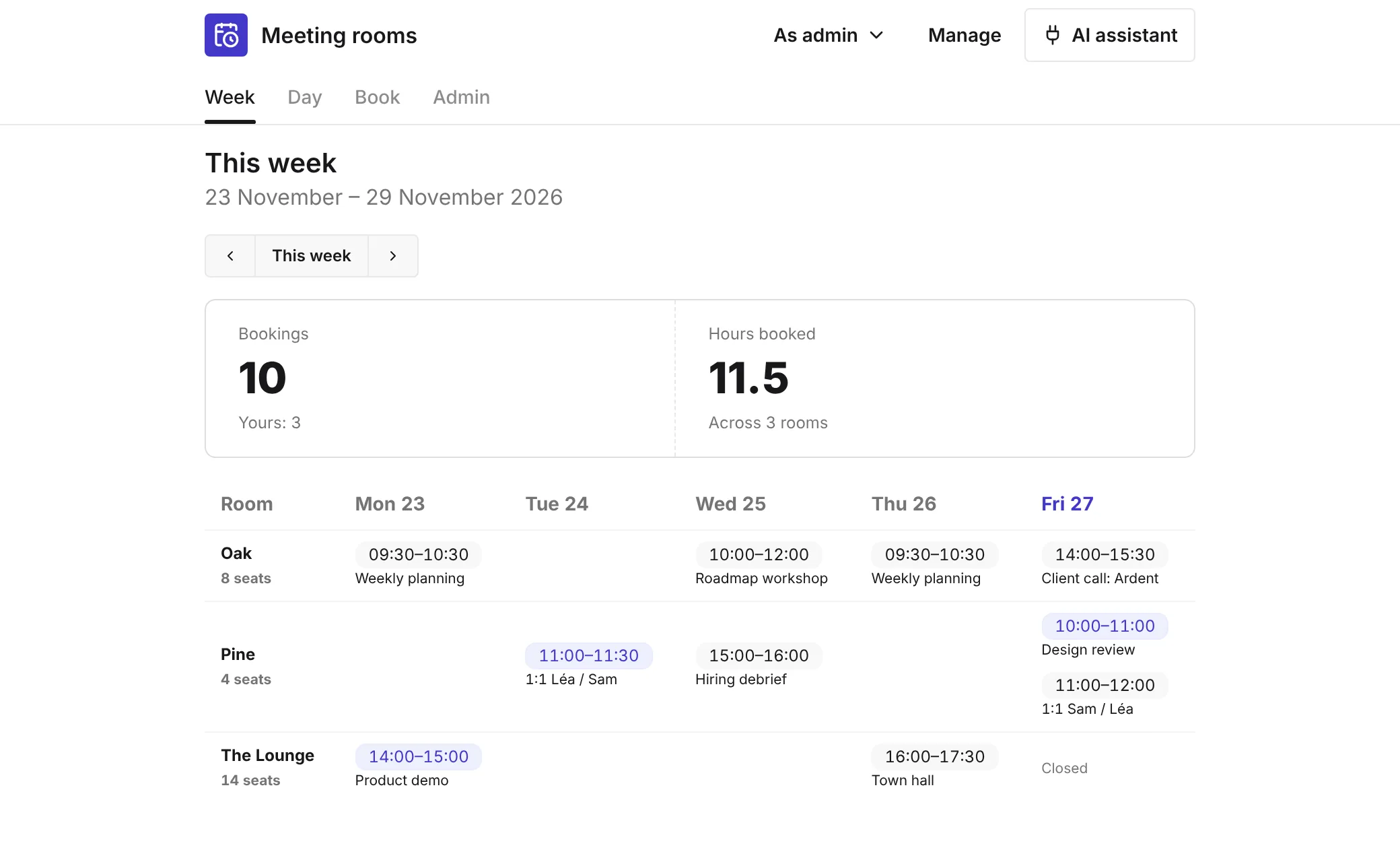
Create a Cliquet app for our office's meeting rooms, from my spreadsheet. Everyone books rooms and cancels their own bookings. Only admins add rooms and set the days the office is closed. Two bookings of a room never overlap, and a meeting never has more people than its room seats. Show us the week at a glance.
Rules are what keep your data right, such as "two bookings of a room never overlap" or "only admins add rooms". Cliquet refuses any change that breaks one, whoever asks for it.
Your assistant asks about anything unclear: who does what, your time zone, what each screen is for. Who does what becomes the app's roles, here admin and member. See Roles and sharing.
Give it your data
When your assistant asks for your file, Cliquet gives you a way to upload it. The file goes straight into the app, so your assistant never retypes your data.
Claude and other assistants that can show a panel open one in the conversation. Choose rooms.csv and click Upload.
Other assistants give you a link to the upload page, titled Upload a data file to and the app's name. You can also open it from the Upload data button of the draft in the console.
- Check the Path, which says where the file goes, such as
data/rooms.csv. - Choose the File, and click Upload.
- Tell your assistant the file is there.
The page lists the files already uploaded under Data in the draft. A file uploaded to the same path replaces the earlier one.
A file can be at most 20 MB. You can upload files only before the app's first publish. After that, data comes in through the app itself, and each change is checked against the rules.
Everyone you share the app with sees its data
Each person sees what their role allows. To try Cliquet first, ask your assistant to use made-up data.
Let your assistant build
Your assistant works in a draft: a copy of the app that only you see, and that nobody uses until you publish it. A draft that was never published is listed under Drafts in the console.
Your assistant reads the start of your file, then:
- writes the app's code, its instructions for other assistants, and its tests;
- checks the app, and runs the tests, which try to break each rule;
- fixes what fails, and checks again.
This takes a few minutes, and there is nothing for you to do. Your assistant needs no terminal and installs nothing: Cliquet runs the app's code in a sandbox.
Try the preview
Before anything goes live, your assistant starts a preview: the draft, running on a copy of your data. Assistants that can show screens show them in the conversation. Your assistant also gives you a link to the preview's pages, marked Preview of your draft, on a copy of the data. Nothing here is live.
Book a room, try to break a rule, and use the As menu to see what members will see. Nothing you do in the preview touches the real data. Tell your assistant what to change, and the preview follows.
Publish
When the app does what you want, your assistant sums up what it is about to publish: its tools, rules and roles, and for a first version, which files become its data. Say yes once it matches what you asked for.
Publishing builds the app, runs its tests, and checks every rule against your data. If a check fails, nothing is published and your assistant says why. Each publish becomes a version of the app, with a one-line note.
The published app appears under Your apps in the console, at https://app.cliquet.dev/apps/<your login>/<app>. It stays private until you share it.
Use your app
Ask your assistant, in your own words:
Book a room for 6 people on Friday from 10 to 11, for the design review.
Who has Oak on Friday?
Your assistant may ask you to confirm a change before it makes it. A change that breaks a rule is refused, with the reason, and nothing changes. A booking of Oak from 15:00 to 16:00, when it is already booked from 14:00 to 15:30, is refused: bookings of a room never overlap.
You and your colleagues can also use the app's screens, in a browser or on a phone. Open them with Open the app on the app's page in the console.
Every change is saved, with who made it and why, and can be undone. See History and undo.
Add it to your home screen
Each role's screens can sit on your phone's home screen, like an app of their own. They open without the browser's bar, under the app's icon on its colour, or Cliquet's mark when the app has no icon.
-
Open the app's screens in Safari.
Sign in if Safari asks, and pick your role with the As menu if you hold several.
-
Tap Share.
It is the square with an arrow, in Safari's toolbar.
-
Tap Add to Home Screen.
Keep Open as Web App on, then tap Add.
-
Open the app's screens in Chrome.
Sign in if Chrome asks, and pick your role with the As menu if you hold several.
-
Open Chrome's menu.
It is the three dots next to the address bar.
-
Tap Add to Home screen.
Some phones call it Install app. Then tap Install.
The app on your home screen shows only the screens, with their tabs. To switch role, manage the app or connect your assistant, open it in the browser. With several roles, add each one you use: each is named after the app and its role. The first time you open it, it may ask you to sign in again. It needs a connection, since your data stays in Cliquet.
Manage your app
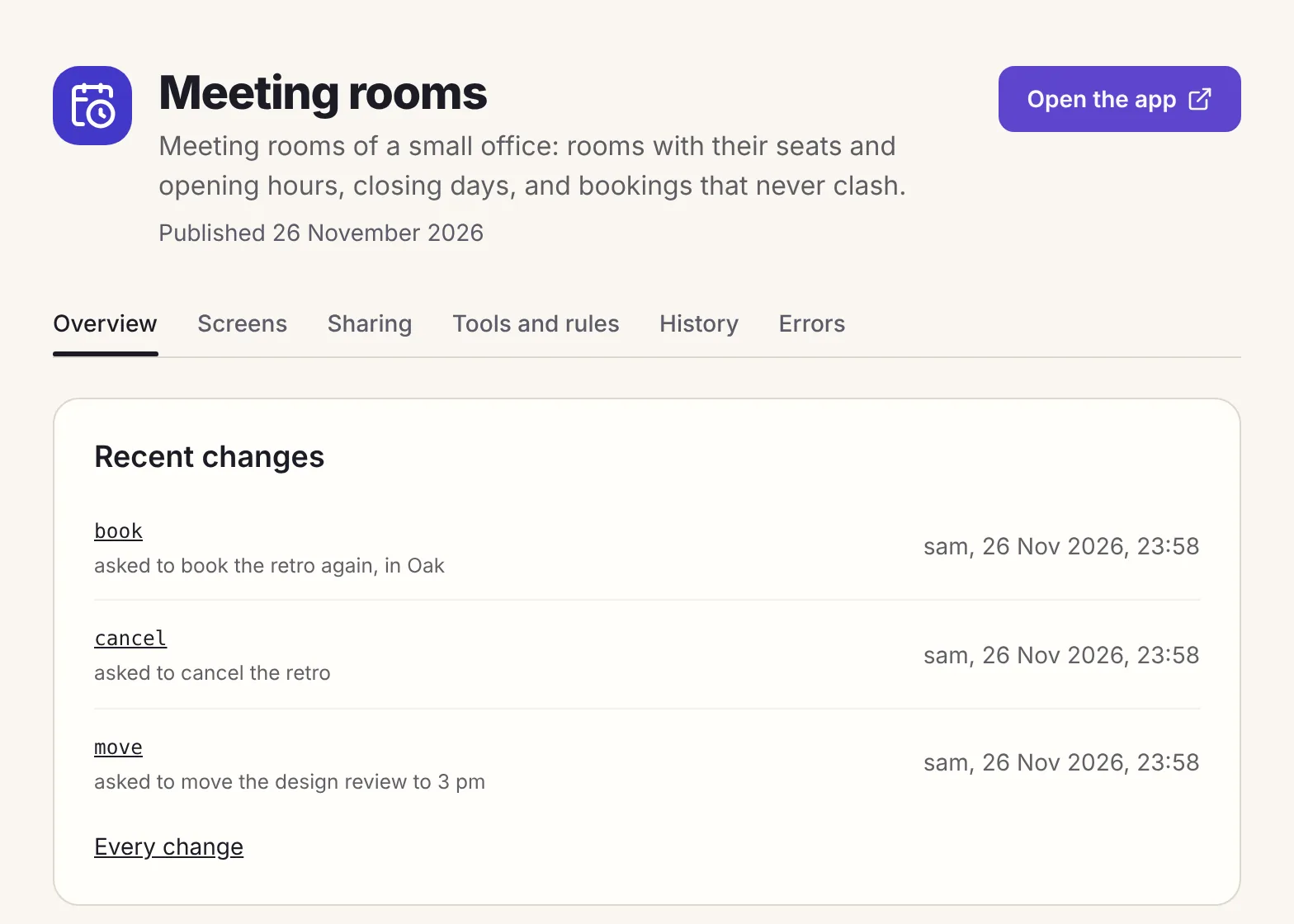
In the console, click your app to open its page. Open the app opens its screens, and six tabs manage it:
| Tab | What it holds |
|---|---|
| Overview | Recent changes, the app's data files with Download the app, its roles, its URLs for agents, and Delete this app |
| Screens | Each screen, as each role sees it |
| Sharing | Who may use the app, and the form to share it: see Roles and sharing |
| Tools and rules | The app's actions, queries, screens and rules, for each role |
| History | Every change to the data, and every version: see History and undo |
| Errors | The calls that failed, which only you can read: see Errors |
Change your app
Ask for the change, such as "add the screen and the projector of each room" or "let members see the closing days". Your assistant works in the draft again, with the same checks and preview, and publishes once you agree. The live app keeps working meanwhile.
When a change reshapes the data, your assistant also writes a migration: a short script that updates the data to the new shape when the new version is published. Publishing checks that the updated data still follows every rule.
If a new version turns out wrong, you can go back to an earlier one: see Restore an earlier version.
Delete your app
Deleting an app removes its data, its history, its draft and its shares. The people you shared it with, and the agents with a token for it, lose it at once.
Deleting an app can't be undone
Click Download the app on its Overview tab first, to keep its data and its whole history.
-
Open the delete page.
At the bottom of the app's Overview tab, click Delete this app. For a draft you never published, click the trash button on its card, under Drafts.
-
Type the app's name, and click Delete the app.
Type the name the page shows, exactly, click Delete the app, and confirm.
Cliquet goes back to your apps, and says the app is deleted. You can also ask your assistant to delete an app: it asks you to confirm its name first.
Next steps
-
Share the app with your colleagues, each with a role.
-
Let a routine, such as a nightly import, use the app on its own.