Connect your agents
Connect your AI assistant to Cliquet once, with one MCP server URL, and it can use every app you have. Agents that run on their own, such as a nightly import, use an API token instead.
MCP server URL
https://app.cliquet.dev/me/mcp
This URL reaches your own apps and the apps shared with you, with the roles you hold in each. If your account can build, it also gives your assistant the tools to build apps. Every app you build or accept shows up there, with nothing new to set up.
Your assistant signs in to Cliquet as you, in your browser, and never sees your password. If you have no account yet, it asks you to choose your login before anything else, and suggests one. As on the web, your login is permanent.
Connect an assistant
Assistants change their menus often. These steps follow each one's help as of November 2026, linked at the end of its tab.
Cliquet is a custom connector in Claude, on claude.ai and in the Claude apps. Every plan has custom connectors, and the Free plan allows one.
-
Add the connector.
Open Customize, then Connectors. Click + Add, then Add custom connector.
-
Enter the URL.
Name it
cliquet.dev, pastehttps://app.cliquet.dev/me/mcp, and click Continue. Keep the recommended sign-in settings, and click Continue again. -
Sign in.
Click Add, then sign in to Cliquet when Claude asks.
-
Turn it on in a conversation.
Click + at the lower left of the message box, choose Connectors, and turn on cliquet.dev. Claude can then show an app's screens in the conversation.
On a Team or Enterprise plan, an owner first adds the connector under Organization settings, then Connectors. Each member then clicks Connect next to it, under Customize, then Connectors, to sign in as themselves.
Anthropic's help: Getting started with custom connectors using remote MCP.
-
Add the server.
claude mcp add --transport http --scope user cliquet https://app.cliquet.dev/me/mcp--scope usermakes Cliquet available in all your projects. Leave it out to add it to the current project only. -
Sign in.
In Claude Code, run
/mcp, choose cliquet, and sign in in the browser window that opens. From a terminal,claude mcp login cliquetdoes the same.
To connect with an API token instead of signing in, add it as a header:
claude mcp add --transport http --scope user cliquet https://app.cliquet.dev/me/mcp \
  --header "Authorization: Bearer cliquet_..."
Anthropic's help: Connect Claude Code to tools via MCP.
Cliquet is a custom app in ChatGPT, which you add in developer mode. OpenAI offers developer mode on its paid plans, on the web. In a Business, Enterprise or Edu workspace, an admin must allow it first.
-
Turn on developer mode.
In ChatGPT's settings, turn on Developer mode, in the advanced settings of the apps section.
-
Create the app.
Name it
cliquet.dev, enterhttps://app.cliquet.dev/me/mcp, and choose OAuth to sign in. -
Sign in.
Sign in to Cliquet when ChatGPT asks.
-
Turn it on in a conversation.
Choose developer mode from the + menu, and turn on cliquet.dev.
OpenAI's help: Developer mode and MCP apps in ChatGPT.
Other clients
Any assistant or editor that connects to remote MCP servers over HTTP works with Cliquet, such as Cursor or VS Code. Give it the MCP server URL. It opens a browser window to sign you in the first time it connects, with no client ID or secret to enter.
Cursor reads its servers from ~/.cursor/mcp.json:
{
  "mcpServers": {
    "cliquet": { "url": "https://app.cliquet.dev/me/mcp" }
  }
}
VS Code reads them from the mcp.json of your user profile, or from .vscode/mcp.json in a workspace:
{
  "servers": {
    "cliquet": { "type": "http", "url": "https://app.cliquet.dev/me/mcp" }
  }
}
A client that can't sign in in a browser uses an API token that works everywhere, in a headers entry: "Authorization": "Bearer cliquet_...". See Cursor's MCP documentation and VS Code's.
Sign-in for MCP clients
The server uses MCP's Streamable HTTP transport. Sign-in is OAuth, through the server's sign-in provider, Auth0 on app.cliquet.dev, which registers each client by itself: the client must support dynamic client registration, or a client ID metadata document.
Check the connection
Ask your assistant:
List my Cliquet apps.
It answers with your apps, the apps shared with you, and any share waiting for you. With a new account, it says you have none yet.
Give an app a file
Some apps take a file you have, such as your bank's export. Your assistant never reads the file: it asks you for it, and passes the app a reference, a short id that stands for the file.
-
Ask your assistant to import the file.
For example, in an app that imports a bank's export: "Import my March export." It asks you for the file.
-
Choose the file.
A panel opens in the conversation. Choose the file and press Upload. If your assistant shows no panel, it gives you a link instead: open it, sign in, and upload the file there.
-
Tell your assistant the file is in.
The panel tells it for you when it can. Your assistant then calls the app with the reference.
A file is at most 5 MB. Its reference works once, for you alone, and ends an hour after the file came. Cliquet doesn't keep the file after that call: the app keeps what it reads from it, as one of its changes.
API tokens
An API token is a secret key that lets an agent act as you without signing in. You make one only once your email is verified, as Verify your email says. Use one for:
- an assistant that can't sign in in a browser;
- a routine: an agent that runs on its own, such as a scheduled task or a script, with nobody there to sign in.
When your assistant can sign in, prefer signing in.
Token scope
Each token works in one of two places, never both:
| Scope | Where it works | What it reaches |
|---|---|---|
| Everywhere | Your MCP server URL, https://app.cliquet.dev/me/mcp |
Every app you may use, as when you sign in |
| Limited to some apps | Each app's own URL, such as https://app.cliquet.dev/apps/sam/meeting-rooms/mcp |
Each of those apps, with the role you chose in it |
A limited token suits a routine: it reaches only the apps it needs, with the smallest role that does the job. At an app's own URL, the routine sees that app's tools directly, with no app to open first.
Make a token
-
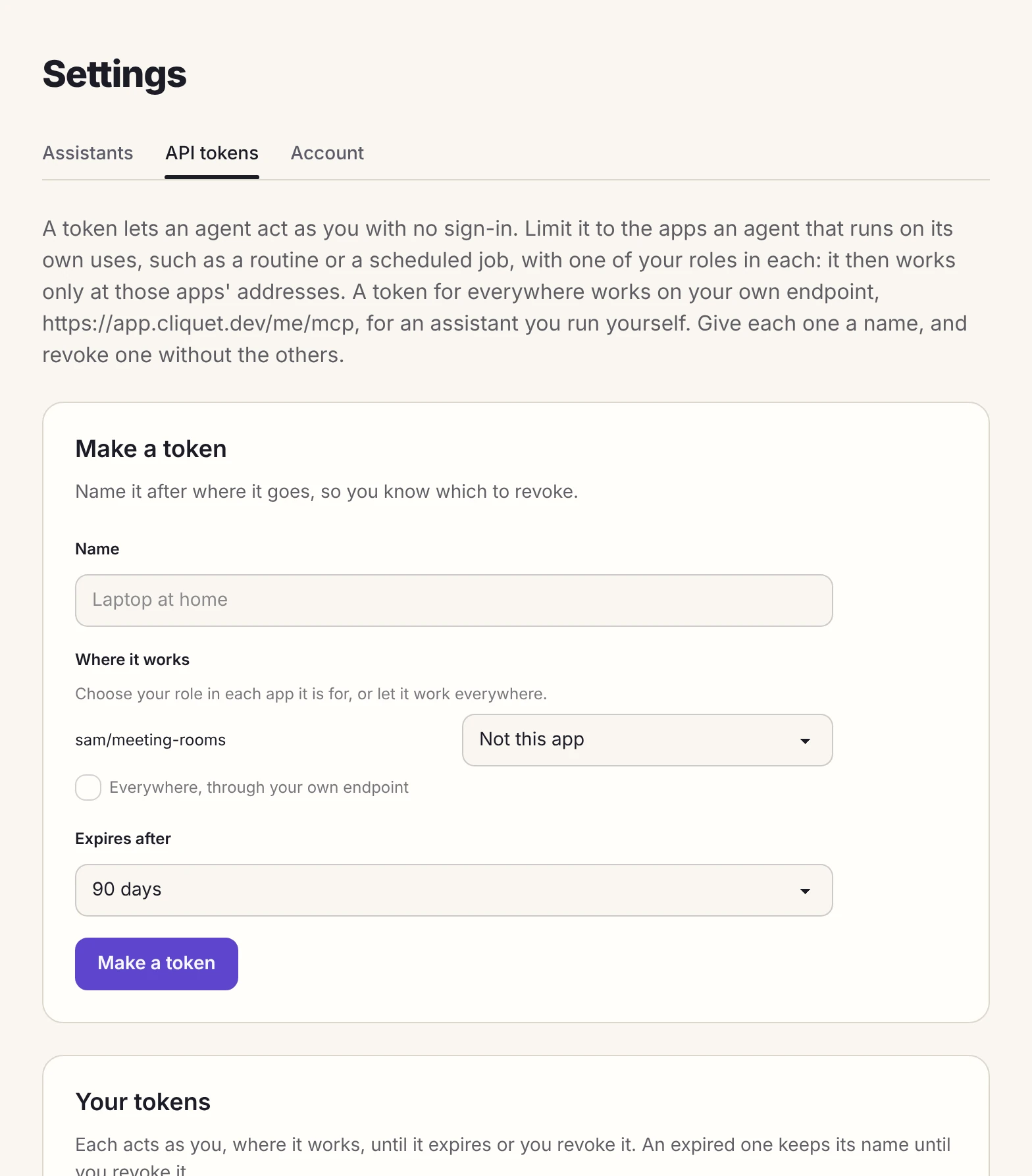
Open the API tokens tab.
In the console, click Settings in the menu, then API tokens. For one of your apps, you can also click Make a token for the app on its Overview tab.
-
Name it after where it goes.
Under Make a token, enter a Name, such as "Team planning". The app's history shows this name next to every change made with the token.
-
Choose where it works.
Under Where it works, choose your role in each app the token is for, such as As member, and leave the others on Not this app. Or tick Everywhere, through your own endpoint.
-
Choose when it expires.
Under Expires after, keep 90 days, or choose 7, 30 or 365 days. Never makes a token that works until you revoke it.
-
Click Make a token, and copy it.
The page shows the token once, with the URL where it works. Cliquet keeps only a fingerprint of it, and can't show it again.
A limited token can only be made for a published app, with a role you hold in it. In your own apps, you hold every role.
Each token also has an id, such as tok_5e0c9a41b27d83f6, shown under its name in Your tokens. The apps it reaches see this id, never the token or its name. So an app can tell your agents apart, such as which one claimed a task. A token you revoke and make again gets a new id.
Keep tokens secret
Anyone who has a token can act as you wherever it works. Keep tokens out of conversations and shared files, and store them in the routine's secrets.
Use a token
The agent sends the token with every request, in the Authorization header:
Authorization: Bearer cliquet_…
A client that reads its servers from a JSON file, as Claude Code can, takes the app's URL and the header:
{
  "mcpServers": {
    "meeting-rooms": {
      "type": "http",
      "url": "https://app.cliquet.dev/apps/sam/meeting-rooms/mcp",
      "headers": { "Authorization": "Bearer cliquet_…" }
    }
  }
}
When the app is published again
A routine at an app's URL usually keeps a session open between its requests. Publishing the app again ends that session, so the routine gets the new version's tools:
- Its next request doesn't run. Cliquet answers that the app was published again, and that the routine must connect again.
- The routine connects again, and lists the new version's tools.
- Nothing it sent is half-done. A call already running at the publish may lose its answer, but its change is kept whole or not at all. Send a change again with the same
app_request_id, so it isn't made twice.
A session also ends after 30 minutes without a request. The routine is then told that its session ended, and connects again the same way. A client on MCP's newest version, 2026-07-28, opens no session: its next request gets the new tools, with nothing to do.
Expired tokens
A token stops working when it expires. An agent that sends it then gets a refusal with the date it expired, and a link to the API tokens tab. Make a new token there, and give it to the agent.
Under Your tokens, each token shows when it expires, or that it never does. Expires soon marks one that expires within 7 days, and Expired one that already has. An expired token stays in the list, and keeps its name, until you revoke it. When an agent uses an expired token limited to one of your apps, the app's Errors tab says so, once an hour.
Tokens made before tokens could expire never expire.
Revoke a token
On the API tokens tab, under Your tokens, click Revoke next to the token, and confirm. Anything using it stops at once. The tokens made with it go too: the list shows Made by and its name under each of them. Your other tokens keep working.
The same list shows when each token was made and last used. A limited token also stops working in an app when you lose your role there.
Let your assistant make one
If your account can build apps, your assistant can make a limited token for you, such as for a routine it sets up. Ask it, and it calls create_token with a name, a role in each app, and how many days the token works: 7, 30, 90 or 365, 90 if it doesn't say. In Claude and other assistants that can show a panel, one opens in the conversation with the token's name and apps: click Create, then Copy. In any other, it gives you a link to the API tokens page with the form filled in: check it, click Make a token, and copy the token. Either way, your assistant never sees it.
An agent connected with a token for everywhere gets the new token in its answer instead. The new token shows Made by and that token's name, and goes when you revoke that token. It never outlives that token either: it expires when that token does, at the latest.
Your assistant also lists your tokens, and revokes one when you ask. It never makes a token for everywhere, or one that never expires: make those on the API tokens tab.
Troubleshooting
- The URL is refused
- Check that it is exactly
https://app.cliquet.dev/me/mcp. - Your assistant asks you to choose a login
- You have no login yet. Tell your assistant the one you want, or keep its suggestion. You can't change it later.
- Your assistant says your email isn't verified
- Open the link Auth0 sent you, then sign in again at app.cliquet.dev, as Verify your email says. If you lost the email, the console sends a new one. Signing in on the web also helps when Cliquet can't read your email from your assistant's sign-in.
- Your assistant can't build apps
- If New app isn't in the console's menu, your account can't build apps. On the hosted service, every account can.
- A new version's tools don't show
- Ask your assistant to open the app again: opening an app gives its current tools.