History and undo
Cliquet saves every change to an app's data, and every version of the app. You can read the history, undo a change, and restore an earlier version.

The history
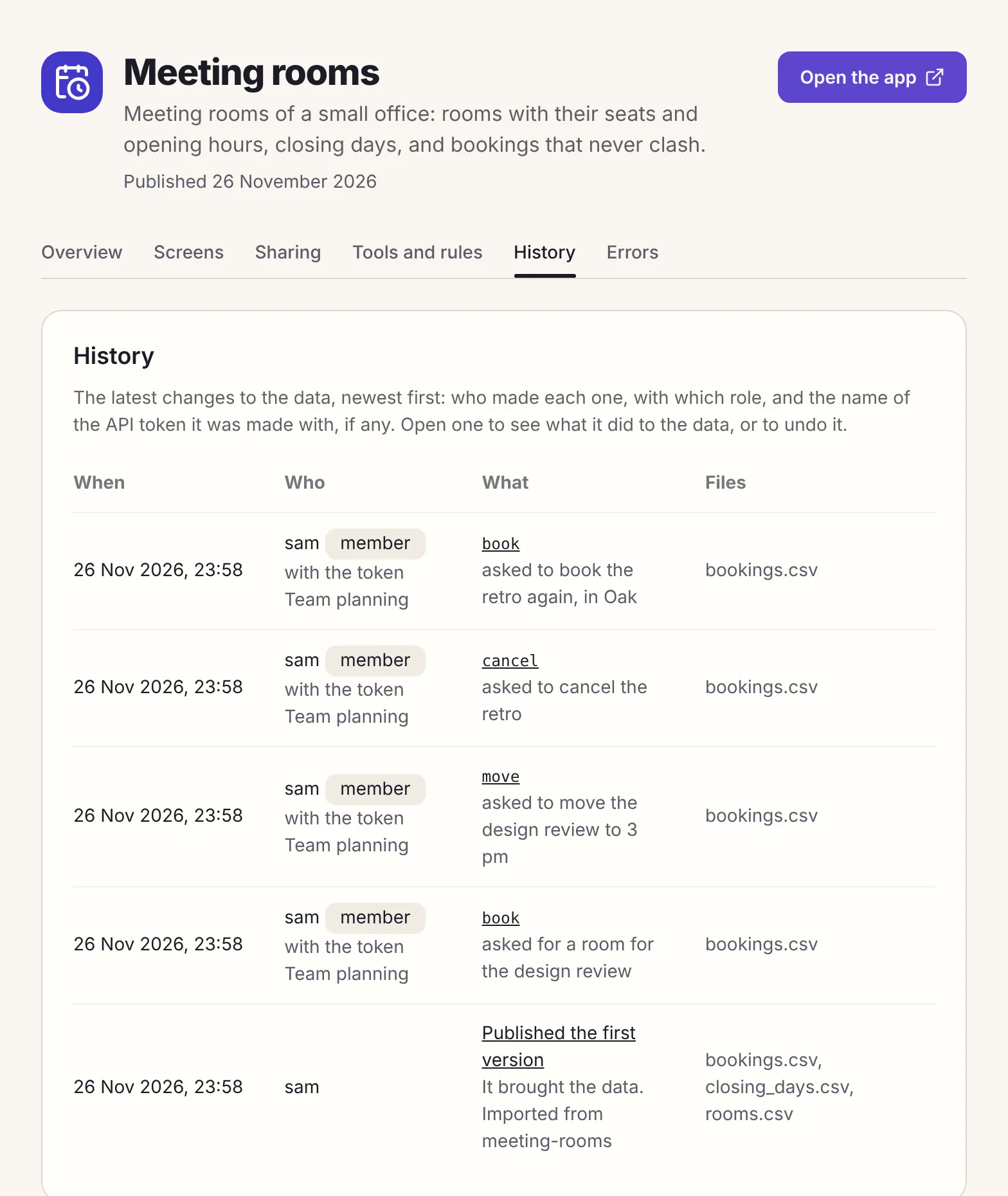
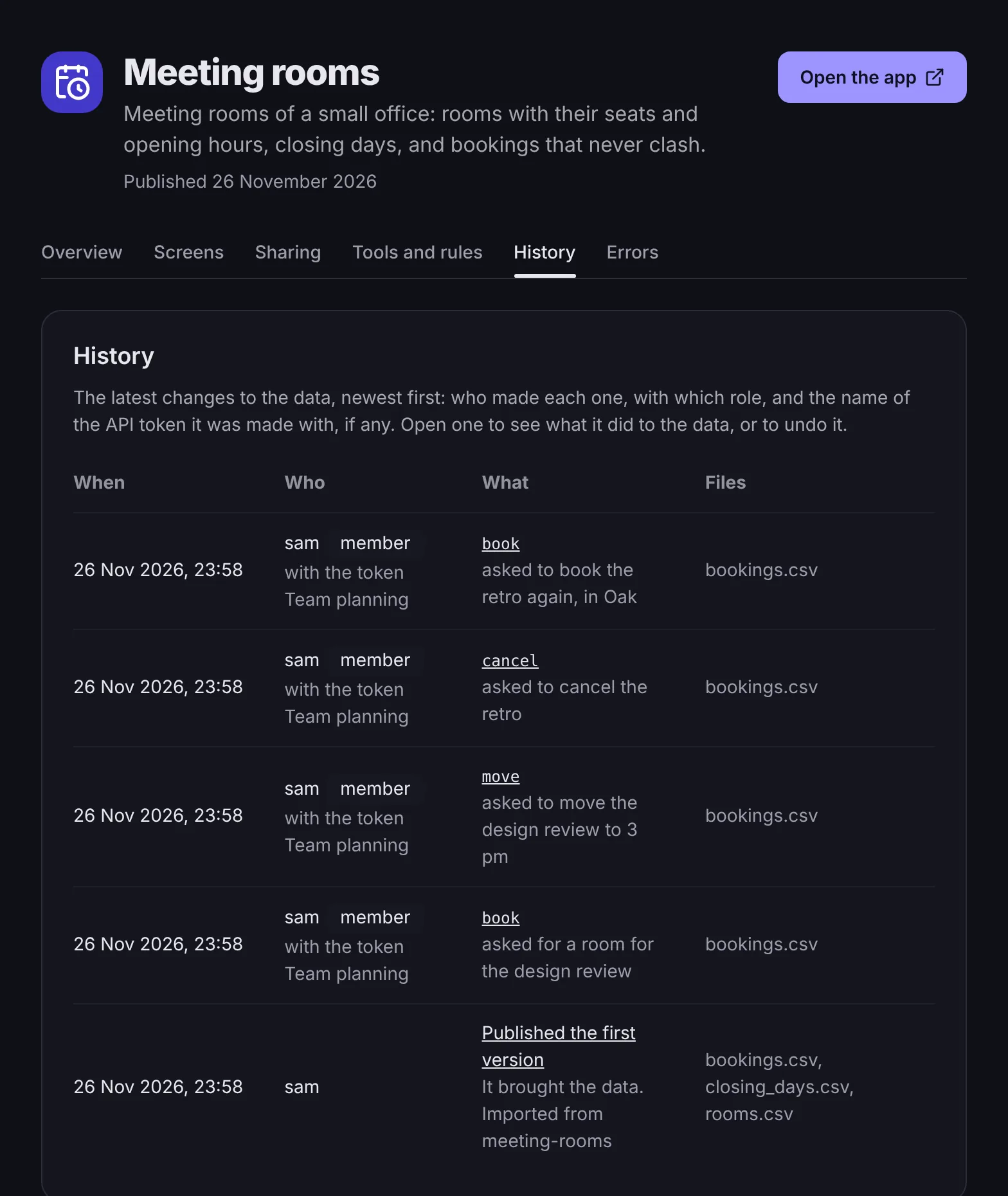
Each change records:
- when it was made;
- who made it, and with which role;
- the action, such as
book, and the files it changed; - the API token it was made with, if any;
- its remark: one line on why it was made, such as "asked for a room for the design review".
The history is never rewritten. An undo, a publish and a restore each add an entry of their own.
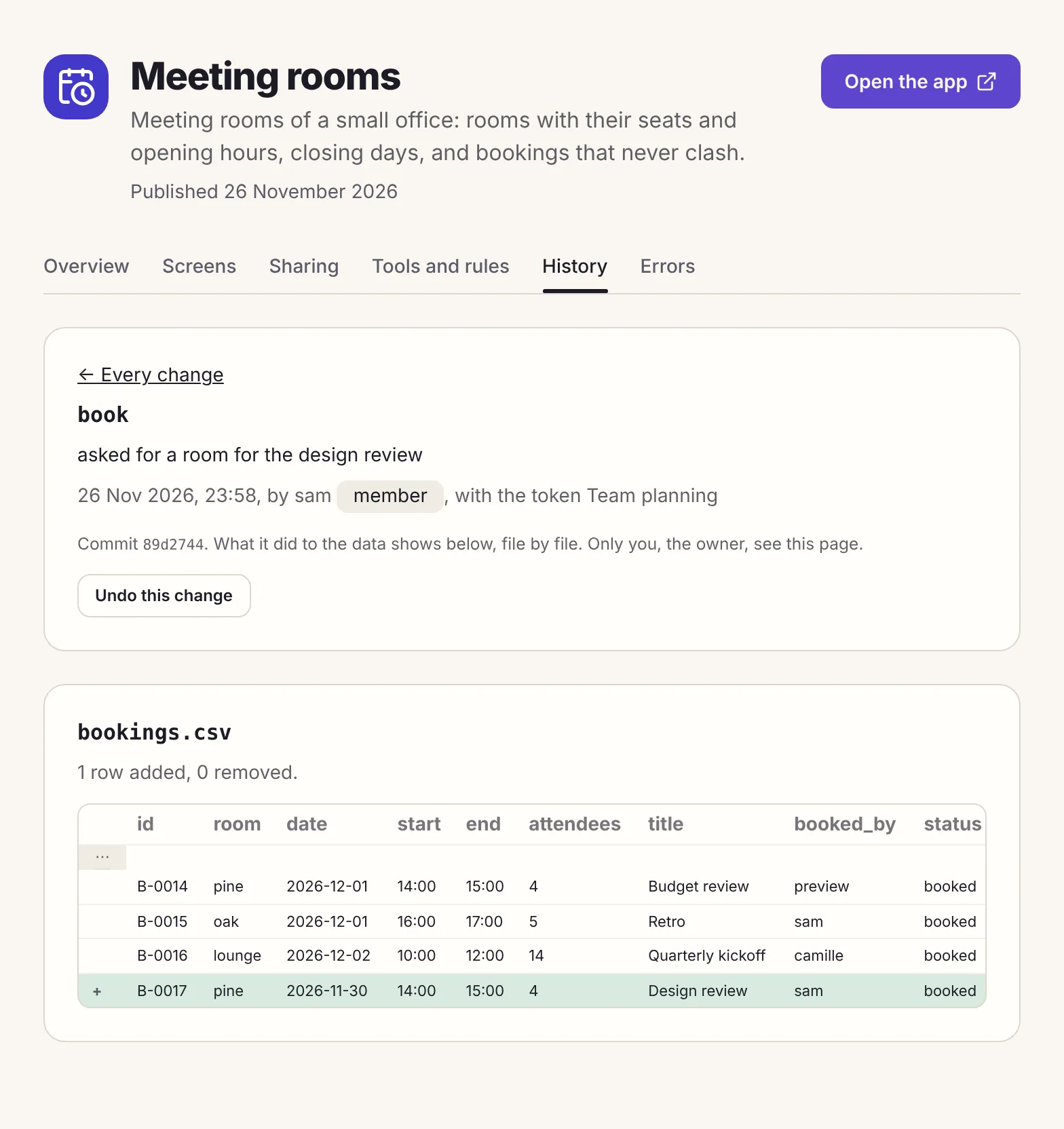
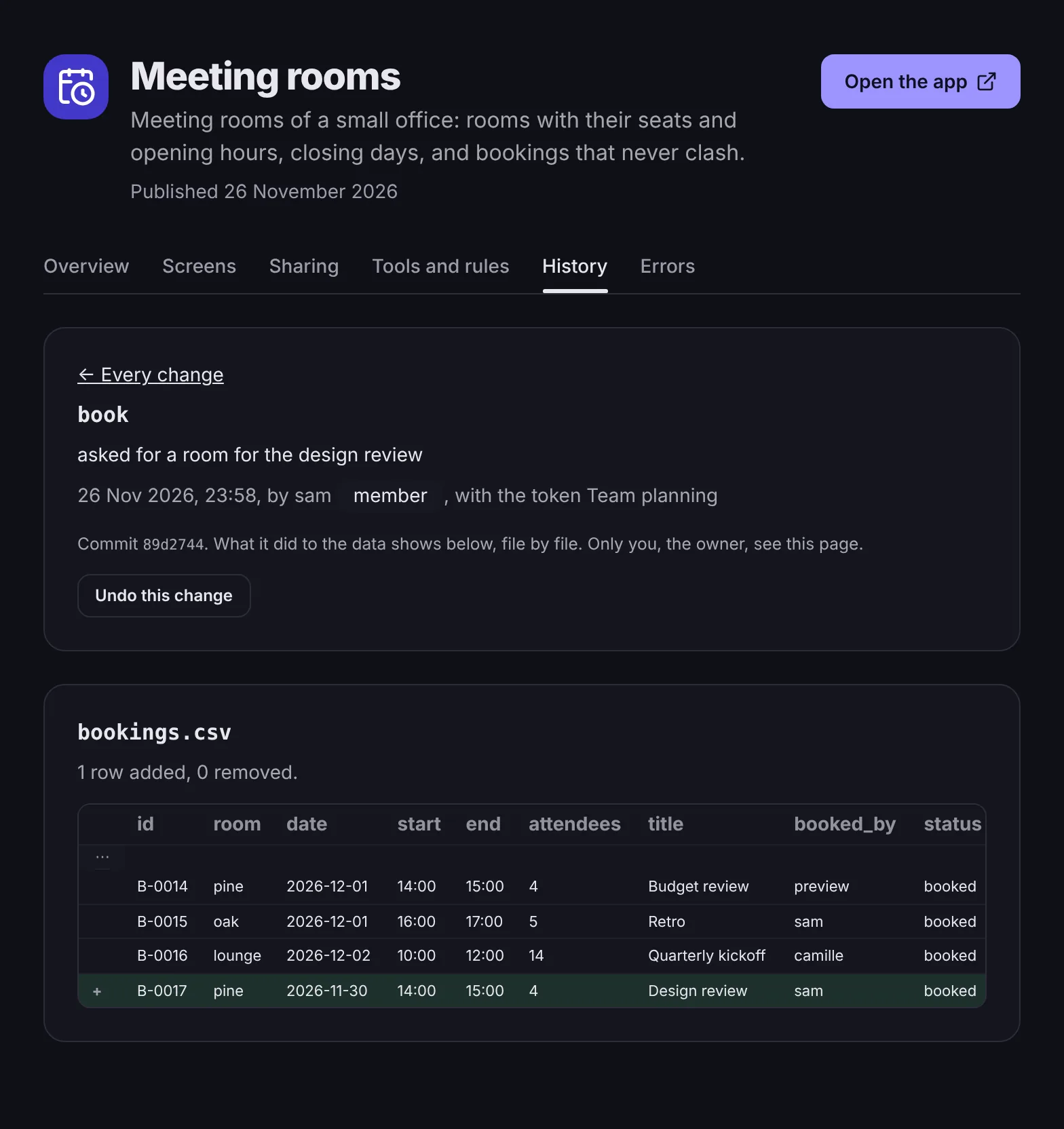
The owner reads every change on the app's History tab, and opens one to see what it did to the data. If the owner builds apps, their assistant can show that too, such as "What did this morning's booking change?". Everyone else sees their own changes, through their assistant.
A remark is kept for good
Remarks stay in the history forever, so they never hold names or private details. Your assistant writes one for every change, of at most 200 characters.
Undo a change
Undoing a change adds a new change that reverses it. The changes made since stay, and the undo is checked against the rules like any other change.
Ask your assistant, for example:
Undo the booking I made this morning.
You can undo your own changes. The owner can undo anyone's.
- Open the app's History tab, and click the change.
- Check what it did to the data, file by file.
- Click Undo this change.
An undo is refused when a later change touched the same lines. Undo the later change first.
There is no single step that puts all the data back as it was on a given day. Undo the changes one by one, newest first, or download the app to read the data as it was.
Restore an earlier version
A version is the app itself, as one publish left it: its code, its rules and its screens. Only the owner can restore one.
Restoring publishes the earlier version again, as a new publish, with every check of a publish: the build, the tests, and the rules against today's data. If a check fails, nothing changes, and the live version stays.
Restoring a version doesn't undo changes to the data
The data stays as it is, with one exception: if a later version reshaped the data with a migration, restoring puts back the data from before that migration, so the older version runs on data it knows. A restore is refused if a change made since touched the same lines.
- Ask your assistant, such as "go back to the version from before yesterday's publish".
- It puts the earlier version in the draft, and starts a preview on a copy of today's data.
- Try it, then ask your assistant to publish it, or to discard it.
Your assistant can't do this while the draft has changes that aren't published: ask it to publish or discard them first.
- Open the app's History tab.
- Under Versions, find the version, by its date, who published it, and its note.
- Click Restore this version, and confirm.
The version is published at once, with the same checks.
Changes made in the meantime
Say you ask your assistant to add two seats to Oak. It reads 8 and is about to set 10, just as Alex, who is also an admin, sets 12 on the app's screen. Your assistant's change breaks no rule, but it would silently replace Alex's.
Cliquet refuses such a change. Your assistant says which version of the data it read, and if the data changed since, the change is refused without running. Your assistant then reads the data again and decides again. In the same way, a change sent twice, after a lost connection, is made only once.
Review several changes together
Some changes only make sense together, such as a weekly meeting booked for the next four weeks. Your assistant can group them in a transaction: it makes the changes, shows you the result, and keeps all of them or none. Each change is still checked against the rules.
The transaction is kept only if nobody changed the data since it began. Otherwise nothing is kept, and your assistant starts again. Everyone else keeps using the app meanwhile. A transaction is dropped after an hour without a change, and when a new version goes live.
MCP tools lists the tools behind the history, undo and transactions.